How to format your document for import
Last updated September 17, 2025
This guide explains how to upload your files and automatically split them into chapters.
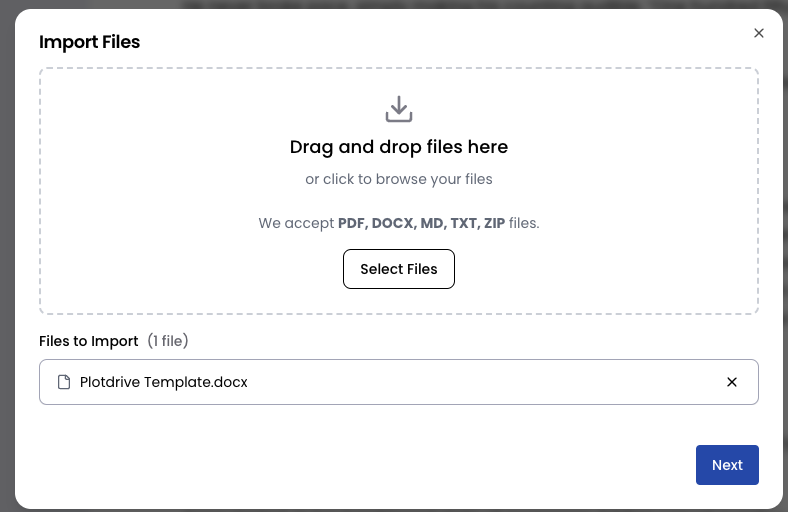
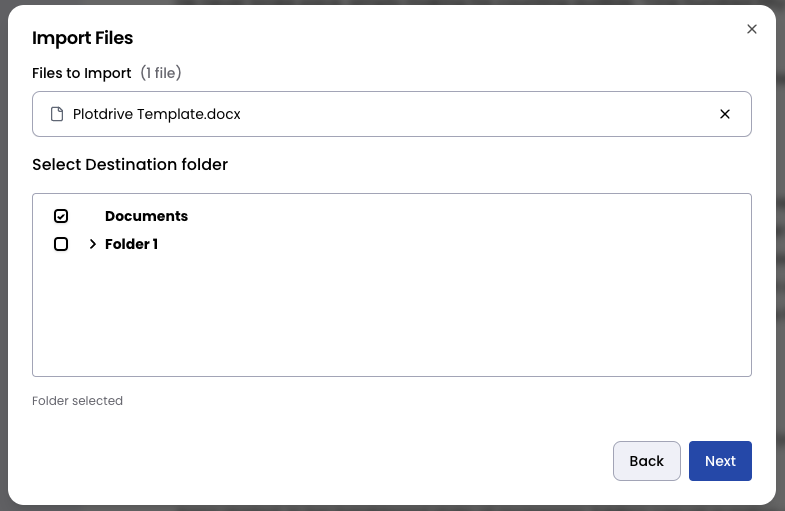
1. Select Your Document
Select your docx for markdown document and choose a destination folder (optional)
2. Use Headings as Chapter Titles
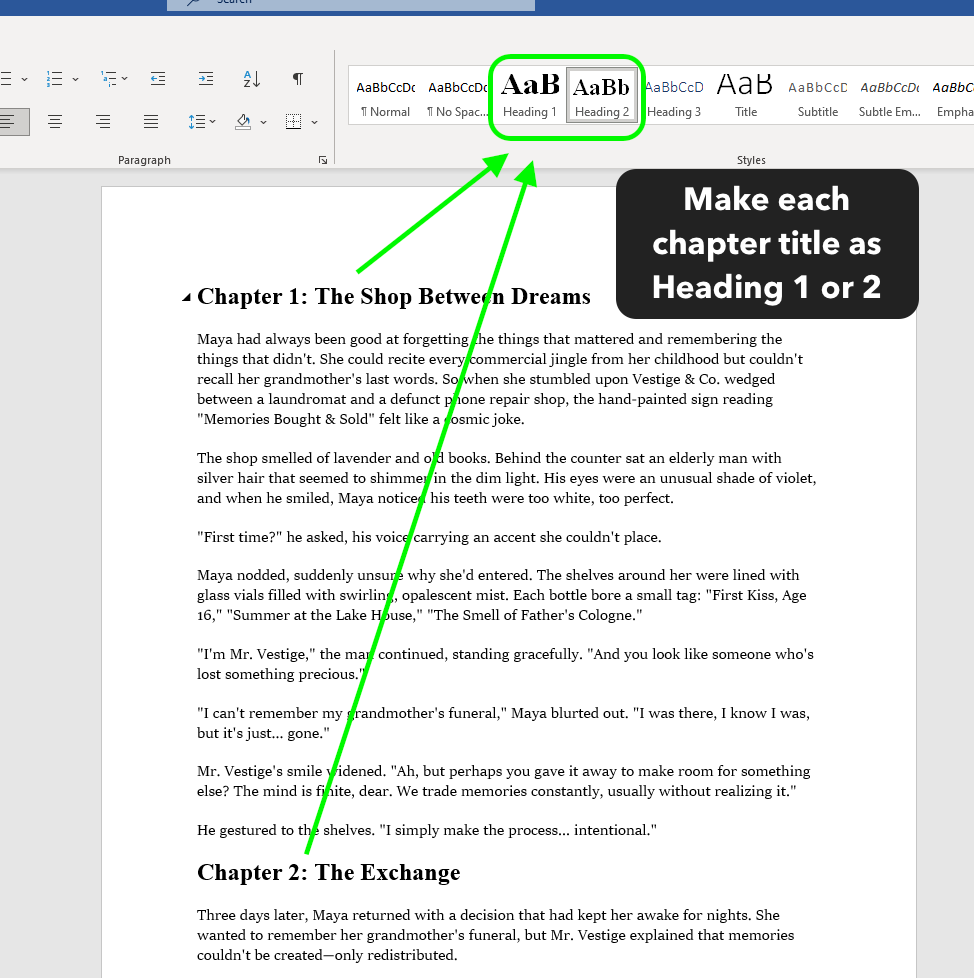
Your document is split into chapters based on headings:
- In Word (.docx): Use Heading 1 or Heading 2 styles for chapter titles.
- In Markdown (.md): Use
#or##before your chapter title.
Example (Markdown):
# Chapter 1 – The Beginning
This is the content of chapter 1.

# Chapter 2 – The Journey
This is the content of chapter 2.

## Chapter 3 - The end
This is the content of chapter 2.
3. Preview Chapters
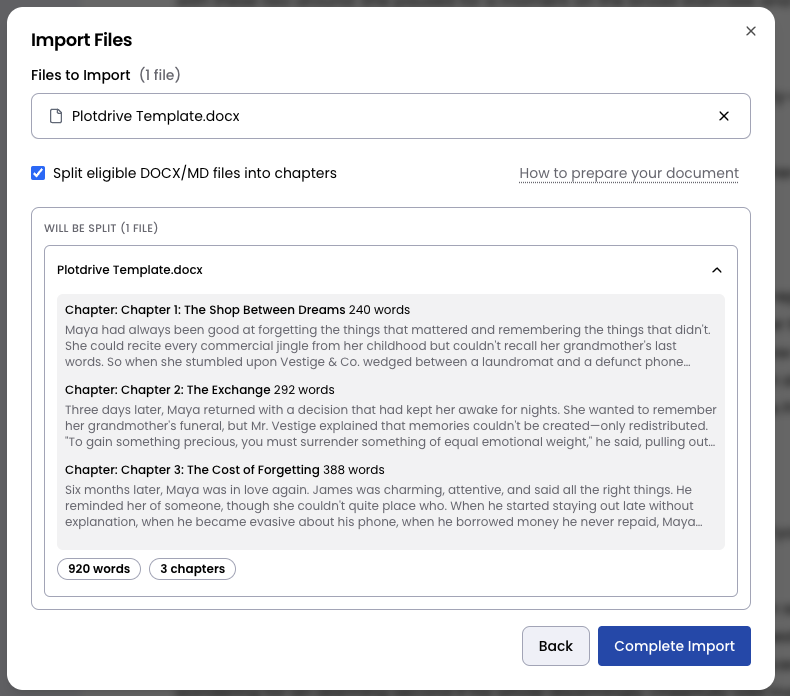
Once uploaded, your document is automatically split:
- Chapter Title → taken from your heading.
- Chapter Content → everything until the next heading.
You can review the chapter list in the Preview Panel.
(Screenshot: Preview of split chapters inside the app)
4. Tips for Best Results
- Always format chapter titles consistently (all
Heading 1or all#in Markdown). - Avoid using headings for non-chapter elements like “Acknowledgements” unless you want them split.
✅ That’s it! Your document is now ready to edit, reorganize, or export.
Was this article helpful?